


EaseSuite Release Notes
What's new in 1.1.6.8
Find text issue & minor bug fixes
- Currently there are minor issues with cells overspilling text or top aligning text when they contain highlighted regions after using search. To solve this in the interim there is a new option in Settings > My Settings > Force DirectX. Turning this off fixes these issues at the expense of slightly slower rendering if you find this is affecting you. It can be turned on again in a future update once the DirectX component rendering issues are resolved.
- Minor bug fixes in purchasing & timesheets, additional timesheet search fields
What's new in 1.1.6.6
- When viewing product images in the product dialog, there is now a right click > Export option on the image which allows it to be exported. This is useful if you want to re-use the same image elsewhere but have lost the source file.
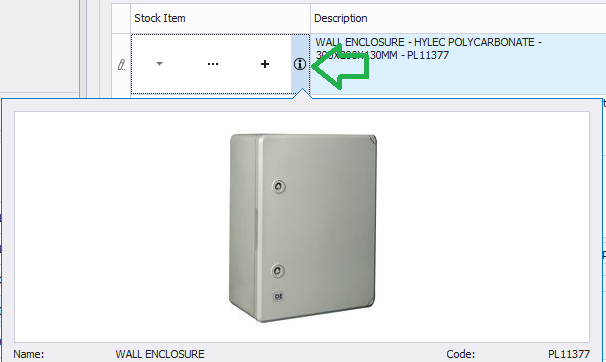
- Next to the +/- buttons in search is now an info "i" button. This shows flyout information on the product now instead of the timed hover over delay, which could be annoying.
What's new in 1.1.6.5
These supply us with a number of useful information about a PC to help troubleshoot and individual computers issues quickly.
- As well as send usage stats, a view usage stats is also available under the top-right help menu.
- Some network speed metrics have been added, which report network card speeds (states if below recommended) and packet loss, as well as timings for a query to the database. This gives insight into network conditions and allows comparing the metrics of fast PCs with slower one in order to troubleshoot specific circumstances.
What's new in 1.1.6.4
- An extremely detailed price rule structure is now implemented allowing for the most detailed customisation of price degrading over time. For example, a hire item can be X on day one, Y on 2-5 days, Z on 5 days plus etc. Units can begin from hours, go to days, weeks, or even into years.
- All periods and prices are customisable, starting from after 1 hour onwards
- A clever percentage system allows bulk price updates should price rules be revamped at any time
- Each asset can now have an unlimited number of services or tests associated with it, with different frequencies, start dates associated with each
- More complex case test/service logic can be specified for greater frequency control, e.g. a service every year but on the 4th this is replaced by a test
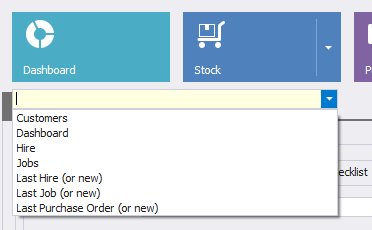
Quick Launch (CTRL +L) for opening areas or new items
- Pressing CTRL + L in the application will open up a quick launch text entry top left. From here you can start typing the first few letters of the area name e.g. "sales" then press enter to go directly to that area. Similarly you can type e.g. "new sales order" to open a new sales order. This works for all areas and can be a very fast way of navigating.
- We will look to extend it with more entries in later releases.
StockEase has now been rebranded EaseSuite
- This means you have a new desktop shortcut icon EaseSuite. The StockEase icon will no longer work but can be deleted.
VAT change on sales order lines (breaking change)
The behaviour of VAT on sales order lines has changed to be closer to Sage.
- If a customer is VAT exempt, each line will now take on the customer's VAT rate and code, i.e. T0/0% for example, and the lines will not calculate VAT.
- Previously VAT was calculated per product but then removed at the sales order total stage and also on the Sage invoice lines for VAT exempt customers. This meant the invoice produced in Sage was correct and sales order final totals were correct, but workings on the sales order lines displayed incorrectly for a VAT exempt customer.
- Our "VAT Exempt" checkbox is loosely equivalent to "Use Default Tax Code for Sales" and the "Default Tax Code" pairing on the customer record in Sage, but behaves slightly different (generally reaching the same result) in that:
- When "VAT Exempt", the customer's tax code is put against product lines instead of using the products (e.g. T0, 0%), it is the equivalent of "Use Default Tax Code for Sales". In this case, it is best the customer's default tax code is an exemption tax code, otherwise they will take on whatever is there and the line(s) will need manual adjustment.
- When not "VAT Exempt", the product's VAT rate is used (e.g. T1 20%, T5 5%).
- Note VAT Exempt is set per customer (then is the default for the sales order when they are selected), but there is also an opportunity to uncheck it at sales order stage should a different VAT setup be needed for a particular case and VAT rates are selectable per line there. This is also left in for edge case scenarios.
- Please note (breaking change): any sales orders that have been created for VAT exempt customers but yet to be invoiced will need line adjustment to the 0% tax rate to go through to Sage correctly (or they could be corrected afterwards in Sage). This is because in this release we no longer correct the invoice line for Sage afterwards, instead we respect what the selected tax code is per sales order line (which is now set correctly for new orders) for a straight push through. This solves various edge cases and consistency issues.
- The easiest way of dealing with these pending sales orders is to open them and toggle the "VAT exempt" twice (once to change, once to move back to what it was). This will correct the VAT on lines, then save the record and invoice as normal.
Flyovers, which show usual information and imagery in several areas such as when hovering over a staff members name, or a product line in a purchase or sales order, are now also available with an "i" icon in some places. This allows the information to be shown instantly instead of waiting a couple of seconds for it to be displayed when hovered over.
When you save a record and there are errors due to invalid or missed entry, affected fields will now be outlined in red as well as have the small cross (and appear in the popup dialog as before).
If the field is in a tab, the tab will also now be outlined in red with a small cross.
These changes make it easier to locate where the validation problem is in complex forms and to fix.
- Jobs can now be fixed price, with eiher fixed price labour, materials, or both. This tails of the maximum that can be billed.
- Fixed price can be set and adjusted (or even removed) at any time.
- Associated labour (timesheets) and sales orders (stock/hire) will be totalled individually on the job as a separate statistic. This allows you to see at anytime how the fixed price is looking compared to what the costs/charges would otherwise be on a non-fixed price job.
- The "Cost Analysis" section on the job form breaks down costs/charges/profits and now adds extra information for fixed price labour/materials. This is hidden in "sensitive mode" or for users with non-access to sensitive information.
Timesheet Approval Process Added
- Timesheets can now be approved (or unapproved). This is for the forthcoming mobile application where you may want to assume staff time is unapproved first before someone checks it off/tidies it up and approves.
- One or more timesheets can be selected and approve/unapprove buttons used on the left to set their status.
- The default behaviour for a new timesheet can set in Settings > General > Jobs, i.e. they can automatically go to approved if you want to assume correct before unapproving by default.
Multiple Purchase Orders from "+" button
- When clicking the "+" button in the stock search area to create a new purchase order from a stock record, it will now look for PO windows that are open for the same supplier and add the item to that order (if multiple open for same supplier, it will prefer the last one you had focused).
- If a window is not found, it will create a new purchase order for that product's supplier, allowing you to start (or add to existing, see next) multiple purchase orders from the stock search screen.
- You may open any existing order(s) first that you want added to from the stock search and the "+" button will add to them if they are the set to the same supplier as the product (otherwise it will create a new order per previous).
- If there are multiple suppliers supplying the product, you will be asked to select which supplier you want.
- This removes the one PO window/same supplier limitation of the "+" button.
- Used in combination with barcode scanning/tablet you can go around stock isles and build up multiple purchase orders for different suppliers by visibly finding low stock and scanning items to build up quantities, which will be correctly directed onto any open purchase orders (or new created).
- Note you cannot create a sales order from "+" button until all purchase order windows are closed (once one or more purchase orders are open, the stock search goes into purchase add mode, likewise if you begin with a sales order).
- Note the "-" button in stock search will now attempt to remove from the last focused window when multiple purchase orders are open.
- Note there are no changes to sales orders when clicking "+", they are still singular when adding from the stock search screen (one at a time, which makes sense).
- Note clicking "+" from a stock item will now focus/bring into view an existing line with the stock item when adding to it (PO and SO), useful for large orders will many lines.